Creating a Desktop from an OS Template
To start building a desktop from an OS template:
- Navigate to the course and open the Desktops menu
- Click "Create From OS Template"
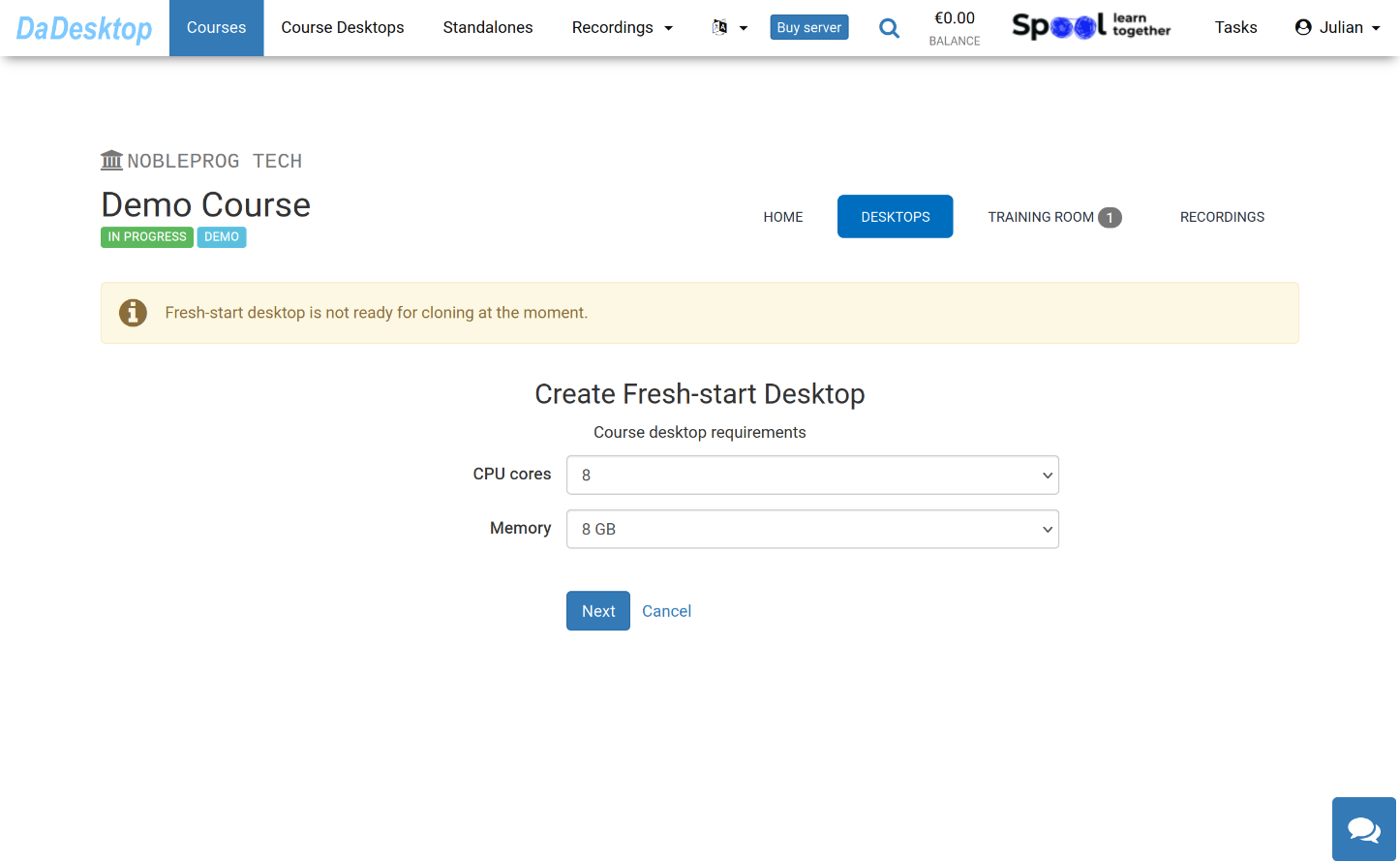
The following screen displays the various settings you can configure when launching a desktop from an OS template
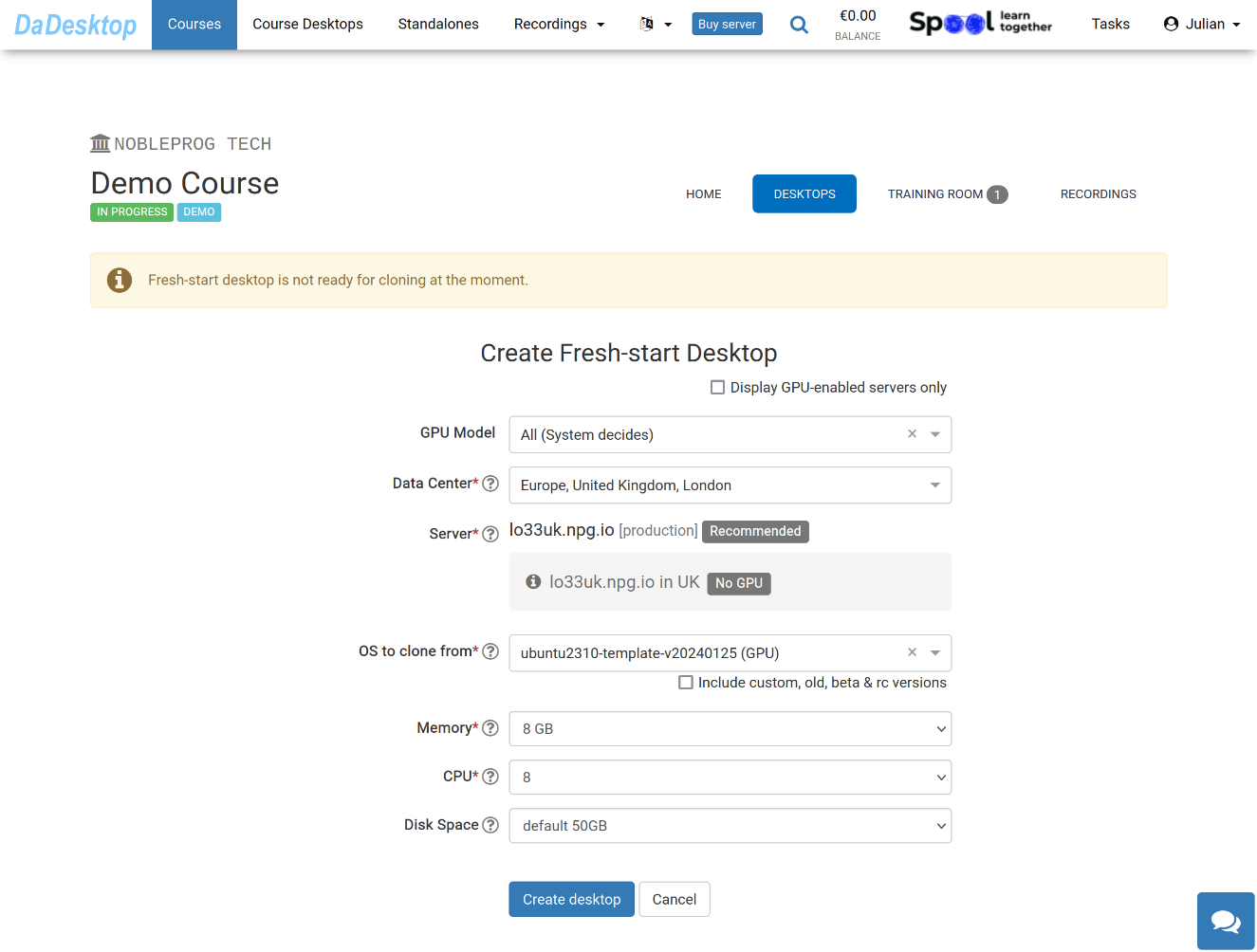
Below is an explanation of each field:
-
GPU Model
Select a GPU model and type if needed. When you check 'Display GPU enabled servers', only servers with GPU capabilities will be shown. -
Datacentre / Server
Pick the datacentre region and server nearest to your location in Poland -
OS to clone from
OS templates include Windows and various Linux distributions like Ubuntu, Debian, and Almalinux. -
Include custom, old, beta & rc Versions
DaDesktop updates templates frequently. However, if the latest version causes issues, you can choose an older version from here. -
CPU
Specify the number of CPU cores needed. The default is 8, which works well for most general Linux and Windows workloads. -
Memory
Set the memory limit (in GB) for the desktop. Keep in mind that server resources impose limits, and each server may offer different memory ceilings. To request a higher limit, reach out via Support Chat -
Disk Space
Select the disk space allocation. The default is 50 GB.