Setting Up Standalone Desktops
Here’s how to set up a Standalone Desktop:
- Select 'Standalones' from the top menu
- Click the 'Create New Standalone' Desktop button
- A dialogue box like the one shown will appear
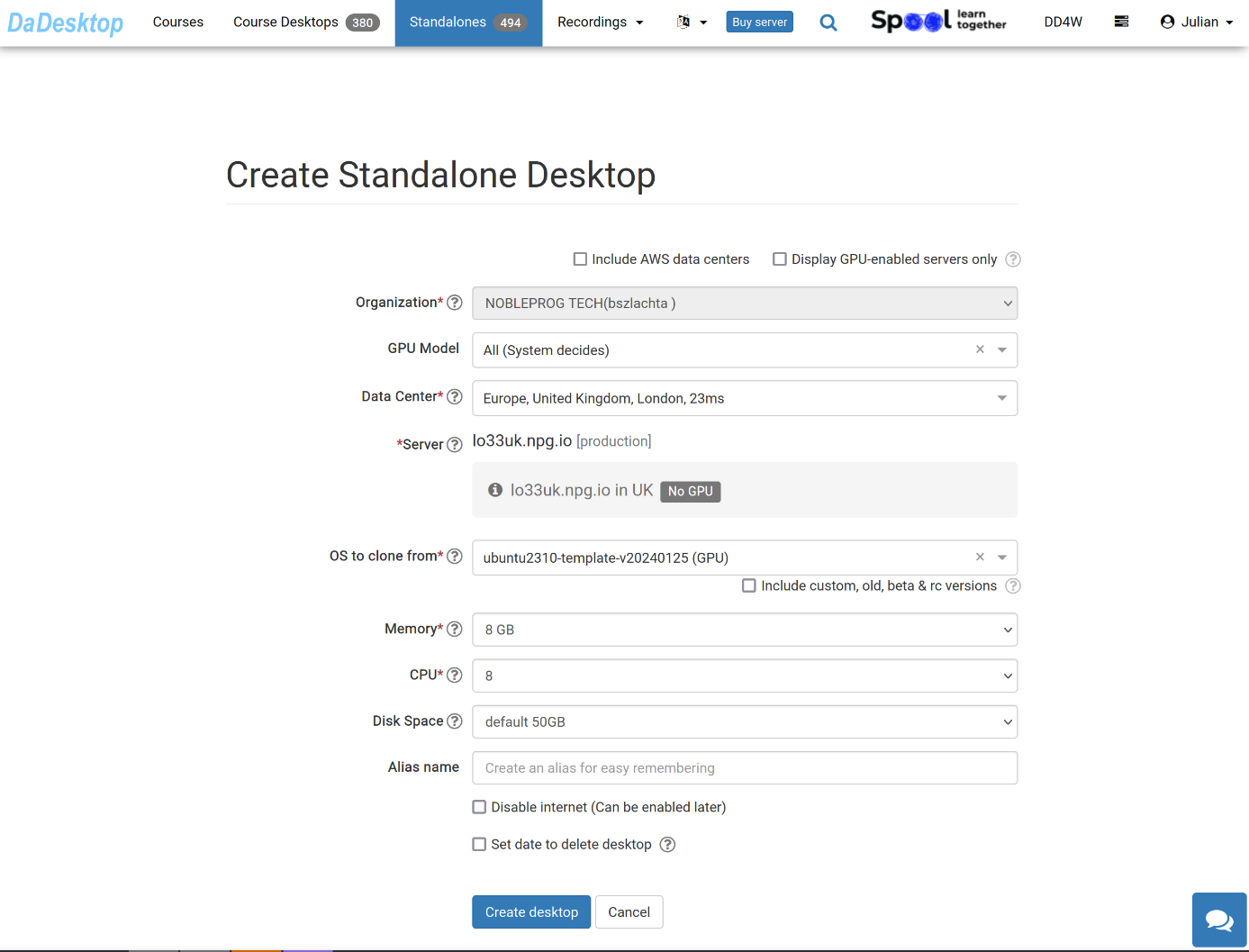
Here’s what each field means:
-
GPU Model
Pick the GPU model and type, if needed. Checking the 'Display GPU enabled servers' option filters the list to show only servers that have GPUs available -
Datacentre / Server
Select the datacentre region and the server nearest to your location -
OS to clone from
You have several Operating Systems to choose from.
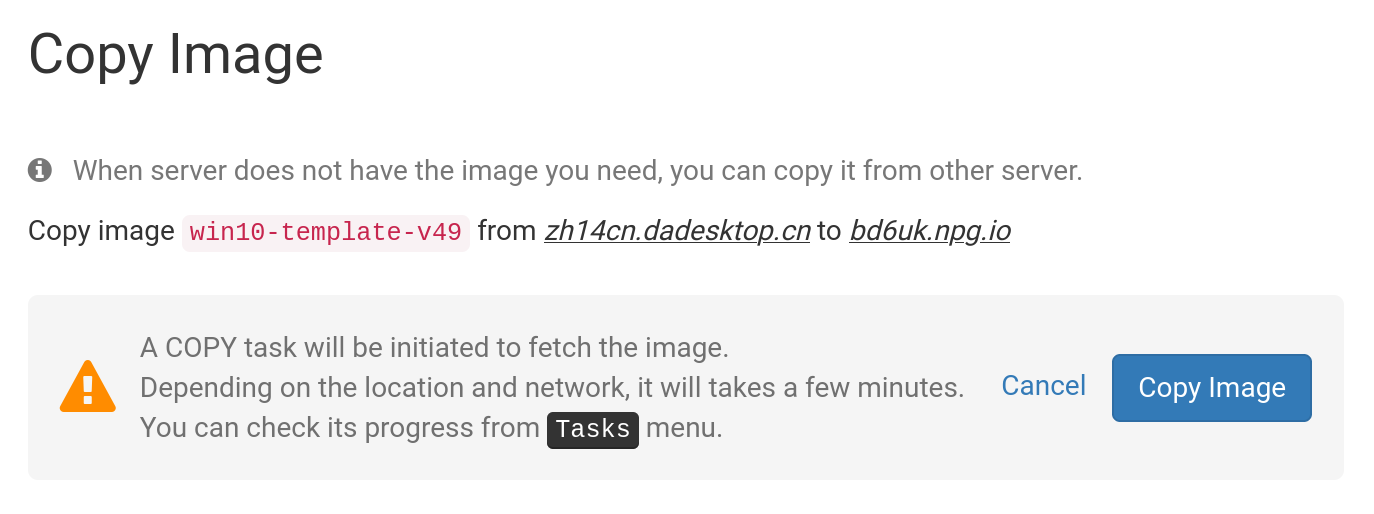
If a template displays 'Copy Required', it means the template is available but first needs to be copied to the selected server. Typically, only Windows OS may involve extra charges. -
Include Custom, RC, and Old Versions
DaDesktop regularly updates OS templates, but if you encounter problems with the newest one, you can fall back to an earlier version
-
Memory
Set the memory limit for the desktop. Remember that you are, by default, bound by the server’s resources. Each server has its own memory limits. To request a limit increase, get in touch via Support Chat. -
Label
You can add an alias to give your standalone a simpler, more descriptive name.
Cloning from an OS Template
You have several options when choosing and building an Operating System Template.
Choices include Windows and various Linux distributions like Ubuntu, Debian, Almalinux, and more.
Pre-built templates are usually indicated by a version number, such as V51.
Alternatively, you can now build fully up-to-date Linux templates. The 'Build New' Linux templates use a separate build system that pulls from Linux sources and applies a script with the essential DaDesktop customizations. This approach means the template is always current, fully secure, and easier to deploy and maintain.
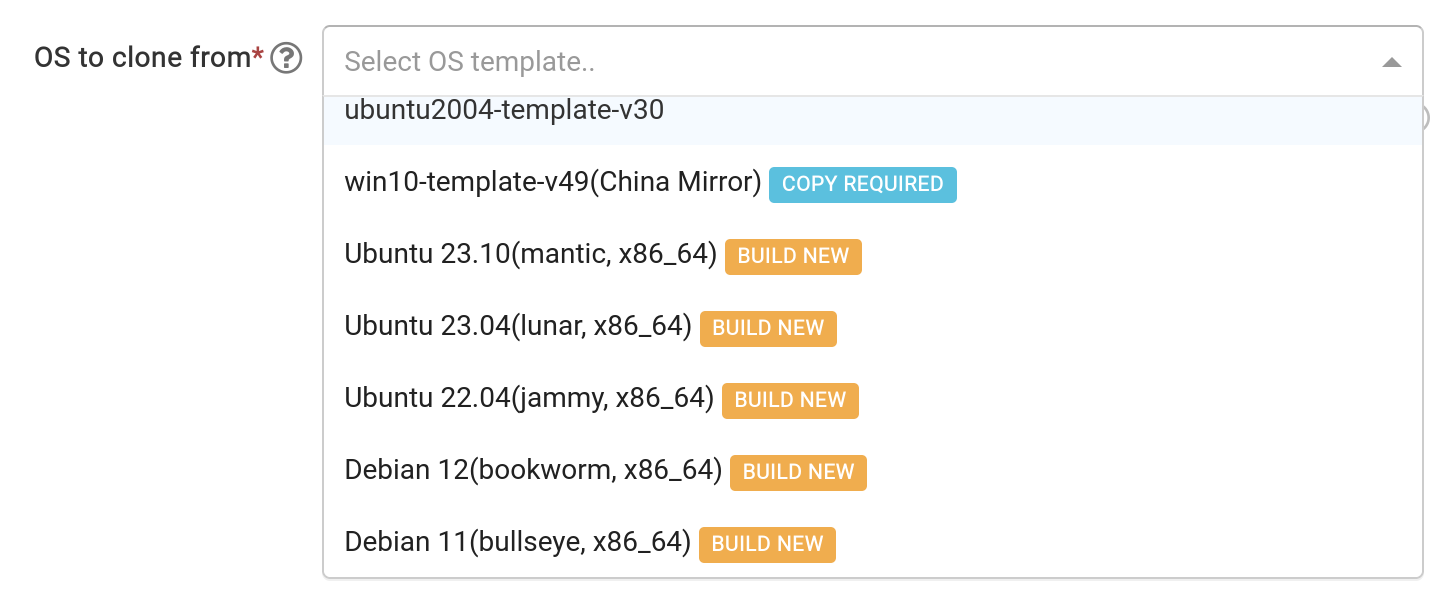
Building an OS Template
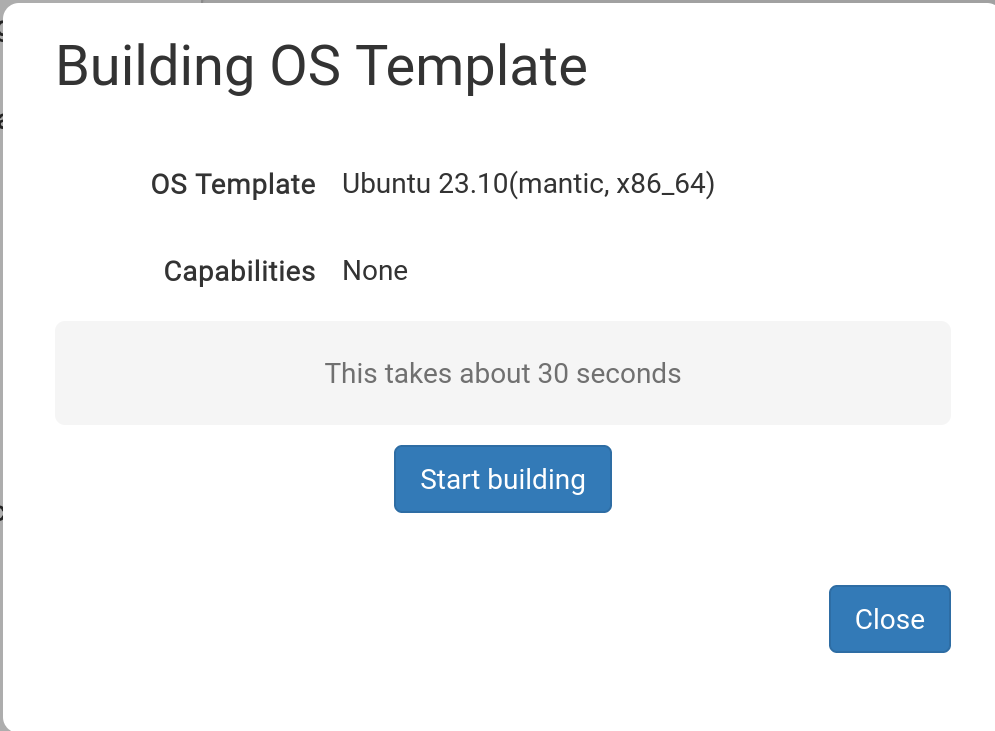
Once you’ve selected the template you need, a pop-up like the one below will appear.
Click 'Start Building'
Your standalone will then be built automatically. Please note that the build process may take more than 30 seconds, and if it seems to hang, just wait a little longer—it’s still working.
Template Build Complete

With the template now built, you can adjust any options as needed, then click ‘Save and Create Desktop’.
Your Standalone is being created; this usually takes only a few moments, far less than building the template itself.
Your new Standalone is ready. In the example below, it’s called ‘julian-6iqm’, but you could have assigned a more meaningful label if you preferred.
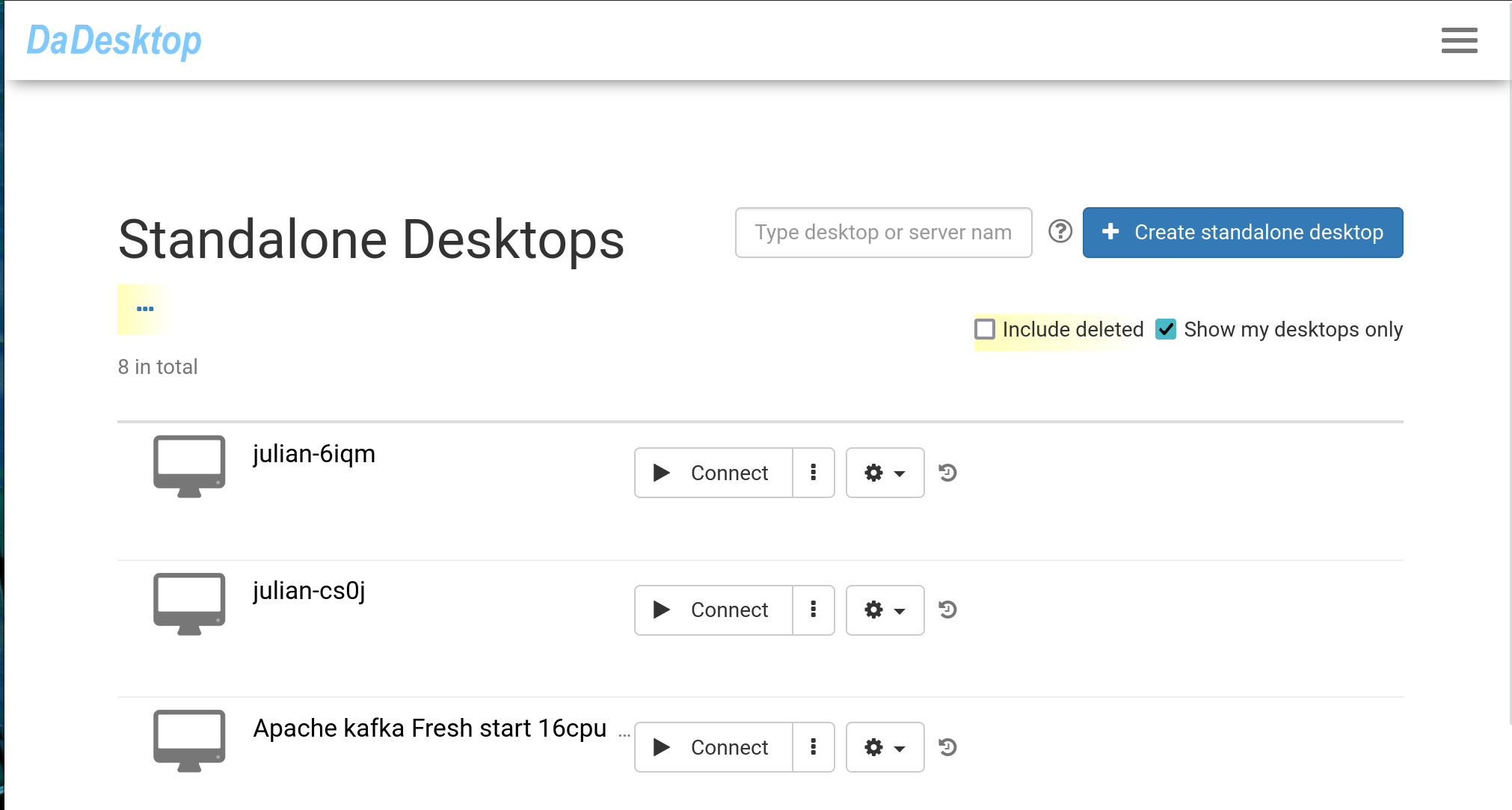
Click ‘Connect’ to launch and connect to your Standalone machine.