Creating Virtual Machines in DaDesktop via Virt Manager
Introduction
When designing a course, it is often beneficial to virtualize a server environment within DaDesktop. Similarly, you may find it useful to virtualize one or two client machines, either replicating the host OS or mixing Windows and Linux environments.
You can achieve 'Nested VMs' using Virt Manager or VirtualBox. If using Linux, Vagrant can optionally be included in the setup; for Windows 10 DaDesktop machines, VirtualBox is the alternative.
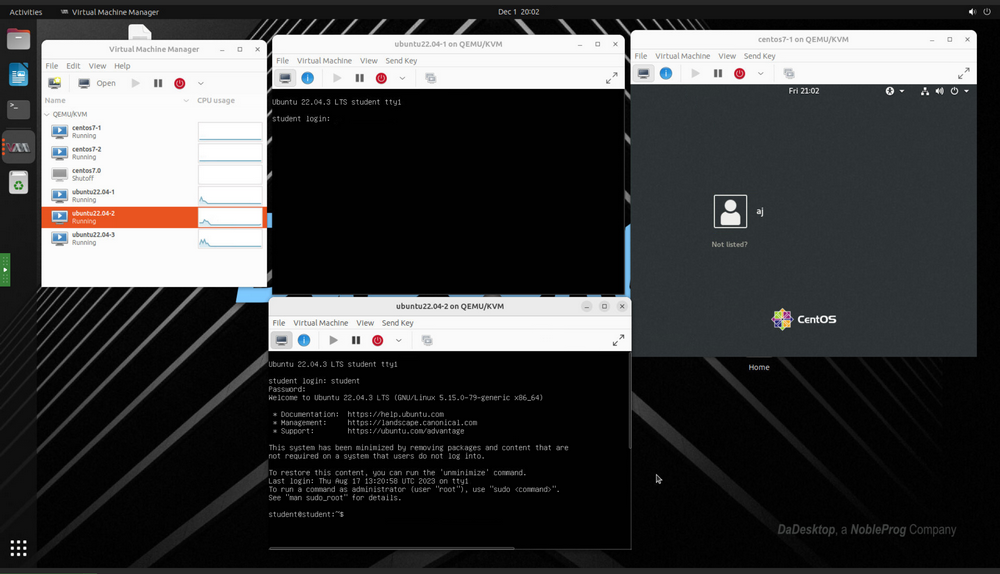
Based on extensive testing, our recommended approach is to use Virt Manager. We currently advise against using VirtualBox in this context due to several known bugs.
The VirtManager application leverages the libvirt library to deliver virtual machine management services. It offers a desktop interface that facilitates the creation, deletion, and management of multiple virtual machines. While it is primarily designed for KVM VMs, it also supports other hypervisors, such as Xen and LXC.
Virt Manager also integrates seamlessly with Vagrant, as demonstrated below:
apt install vagrant-libvirt
Please note that while there are fewer Vagrant boxes available for libvirt/kvm compared to VirtualBox, they can be easily converted for compatibility with libvirt, as illustrated here:
https://medium.com/@gamunu/use-vagrant-with-libvirt-unsupported-boxes-12e719d71e8e
The user interface provides a comprehensive overview of all VMs, including their status, CPU usage, live performance graphs for running instances, and resource utilization statistics.
If you are new to Virt Manager, it operates similarly to VirtualBox but includes several key distinctions detailed below.
For a solid guide on using virt-manager on Ubuntu Linux, refer to this resource - https://www.debugpoint.com/virt-manager/
Why choose Virt Manager over VirtualBox?
Advantages
- Significantly superior performance - Virt Manager utilizes VirtIO drivers for storage, networking, and graphics, resulting in enhanced throughput. Virtio drivers are paravirtualized device drivers for KVM, supporting Linux and Windows guest VMs on KVM hosts. The virtio package supports block (storage) devices, network interface controllers, and graphics. Being open source, these drivers are easily installed if not pre-installed on your Linux distribution.
- Greater configurability options are available.
- Excellent compatibility with Vagrant.
- Parts of VirtualBox are not fully open source, whereas Virt Manager is.
- Virt Manager does not require module recompilation after kernel upgrades, a common issue with VirtualBox.
- VirtualBox is prone to stability issues following new kernel upgrades.
Disadvantages
- VirtualBox may offer a slightly shorter learning curve.
- Configuring 'Host networking' rather than NAT is more straightforward in VirtualBox, although NAT functions effectively for most use cases in both systems.
- VirtualBox supports multiple platforms, while Virt Manager is exclusive to Linux.
Overall, we find Virt Manager to be the preferred solution for running servers within a DaDesktop machine.
Installation
Since libvirt is continuously improving, it is best to use the latest non-LTS Ubuntu or Debian version.
Installing kvm and virt-manager involves the following brief steps. However, please follow an up-to-date guide tailored to your specific DaDesktop OS. One recommended guide is https://www.debugpoint.com/virt-manager/
sudo apt install virt-manager
sudo adduser student libvirt
sudo systemctl restart libvirtd
Reboot the DaDesktop machine, then launch Virt Manager from the Applications menu.
Configuration
- How can I import or convert virtual machines? While creating custom VMs to meet specific OS and specification requirements is straightforward, complex setups often benefit from importing existing server or appliance configurations. These are frequently provided as VMDK images. Although it is unclear if direct addition to Virt Manager is possible in the current version, VirtualBox server images cannot be imported directly. Instead, they can be easily exported to other virtualization formats, such as Open Virtualisation Format (.OVF), which Virt Manager can import without issue. Alternatively, you can use VMware Converter if available, or Virt-V2V as detailed here https://www.redhat.com/en/blog/importing-vms-kvm-virt-v2v. Qemu-convert is another excellent open-source tool for converting between different virtual machine formats.
To convert from VirtualBox to Virt Manager KVM format, follow these instructions: https://ostechnix.com/how-to-migrate-virtualbox-vms-into-kvm-vms-in-linux/ -
Best method for importing large files into standalone environments. A new feature allows you to easily upload files from your local machine to your DaDesktop machine.
Alternatively, consider using cloud storage tools like Google Drive or Microsoft 365. You can access these by logging in within the DaDesktop machine.
- When importing virtual machines from other formats, you may need to adjust graphics and/or disk types. A key advantage of Virt Manager is its robust support for VirtIO drivers. These open-source, fully virtualized drivers offer significantly better performance than standard disk, network, or graphic drivers and are compatible with nearly all operating systems, including excellent support for Windows 10 guest machines. If your Guest OS supports them, VirtIO drivers are generally the preferred choice for both compatibility and performance when using Virt Manager (KVM). See https://wiki.archlinux.org/title/Libvirt
- Optimal settings for virtual machines in Virt Manager VirtIO drivers are included in most modern open-source server operating systems and can be easily installed on Windows. While VirtIO is generally the best driver option, other types may be required in specific scenarios. For networking, NAT is sufficient for most cases unless a complex setup requires Bridged Host networking, which can be more challenging to configure.
https://wiki.archlinux.org/title/Virt-manager is an excellent starting guide.
Running Windows requires additional steps, including slipstreaming VirtIO drivers to ensure the Windows 10 ISO boots correctly.
When selecting the hard disk format, .raw files are best for speed unless snapshots are needed; in that case, use the qcow2 format, which is slightly slower. - Although Wayland works well for most display management needs, we currently advise sticking with X11. However, it is worth testing Wayland in your specific setup, as distributions are continuously improving their Wayland support.
- Avoid using KSM, as while it works in nested environments and Virt Manager, it offers little practical difference.
- Tech Support is available for assistance with converting disk images for Virt Manager compatibility and for setting up DaDesktop courses using Virt Manager.
-
Where are disk image files located in the filesystem? Virt Manager stores image files in the following location by default, though this is configurable, and other locations can be used if preferred.
/var/lib/libvirt/images