Recycle Bin
Once a course wraps up, all the associated machines—the Fresh Start, Trainer, and every Participant machine—are automatically taken down after a brief interval.
A new capability lets you bring these machines back from the 'Recycle Bin' for a while after they've been removed. The recovery window isn't fixed; it depends on things like server disk space, overall usage, and other factors. In practice, you can usually restore machines at least a couple of months after the course ends.
Each machine can be Restored to its original Course, provided the Course still exists. Otherwise, you can Restore to a Standalone Desktop or, if you prefer, Deleted outright.
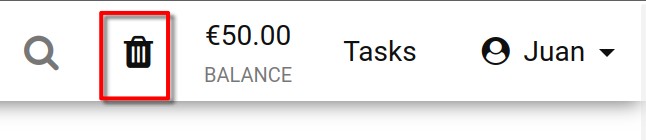
The state of your Recycle bin is shown by its icon: black means there are restorable machines, while greyed out indicates the bin is empty.
You can also look through your recycle bin by searching for a machine name, server name, or course name.
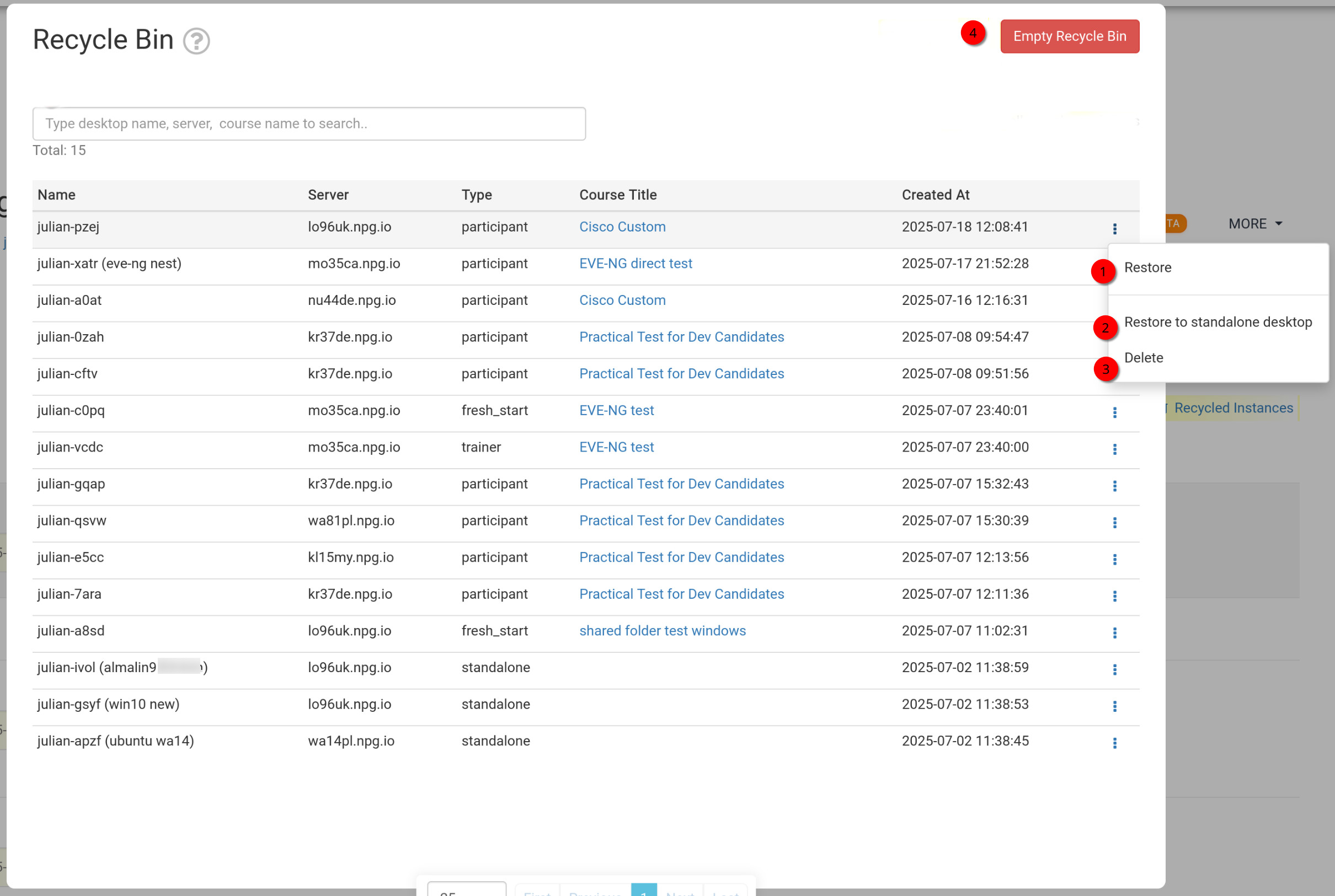
How to restore or delete your machines from the Recycle Bin
- Restore - Choose this to bring a machine back into the course it originally belonged to. If the course has already finished, the machine can't be put back there; you'd need to restore it as a Standalone machine instead (see next option).
- Restore to Standalone Desktop - Typically, you'd use this when a course is over and the machine can't go back. Restoring as a Standalone gives you more control—the machine stays around as long as you need it.
- Delete - To permanently remove a machine from the Recycle Bin, select 'Delete'. Note that once it's gone from the bin, you can't get it back.
- Empty Recycle Bin - Clicking the red Empty Recycle Bin button wipes out all your machines from the bin, making them unrecoverable.