Training Room Overview
Joining a course is made simple through the Training Room.
It lets users do the following:
- Manage their own virtual desktops, and trainers can even take control of participants' desktops
- View the trainer's desktop in a grid or side-by-side arrangement
- Record their own desktop activity
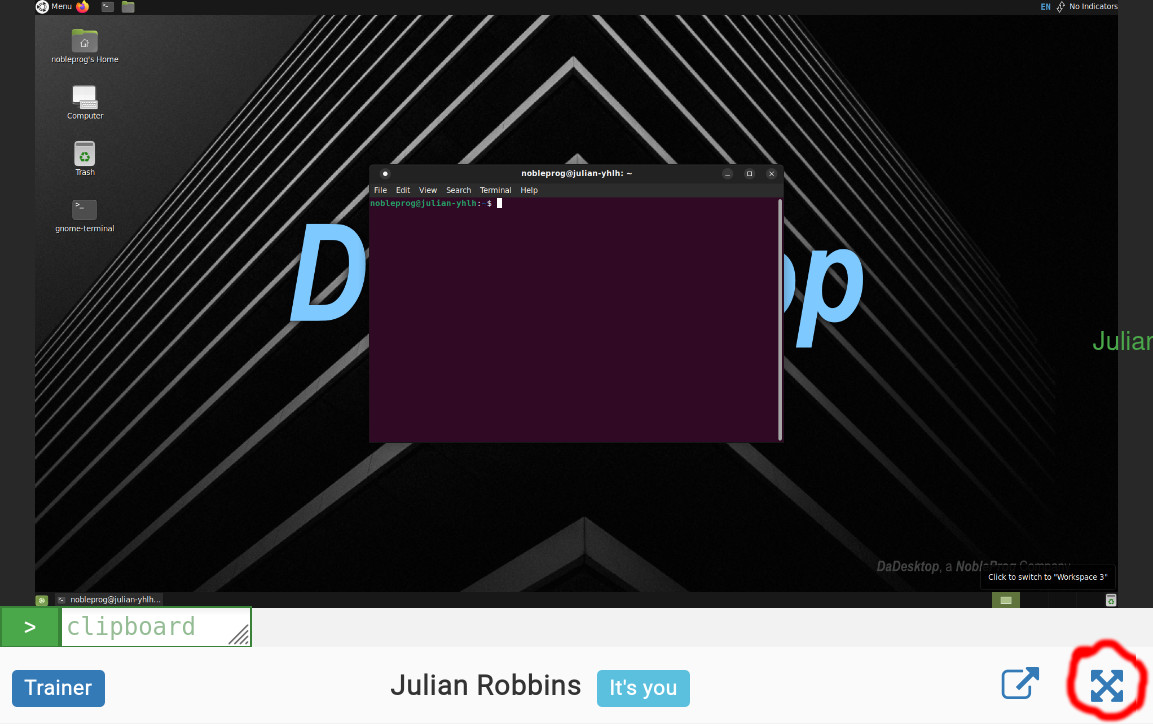
- Detach the desktop to a separate browser window or move it to another monitor
- Chat
-
Access training materials
Everything takes place right in the browser. To smooth the onboarding for newcomers, participants are brought straight into the Training Room as soon as they join a course.
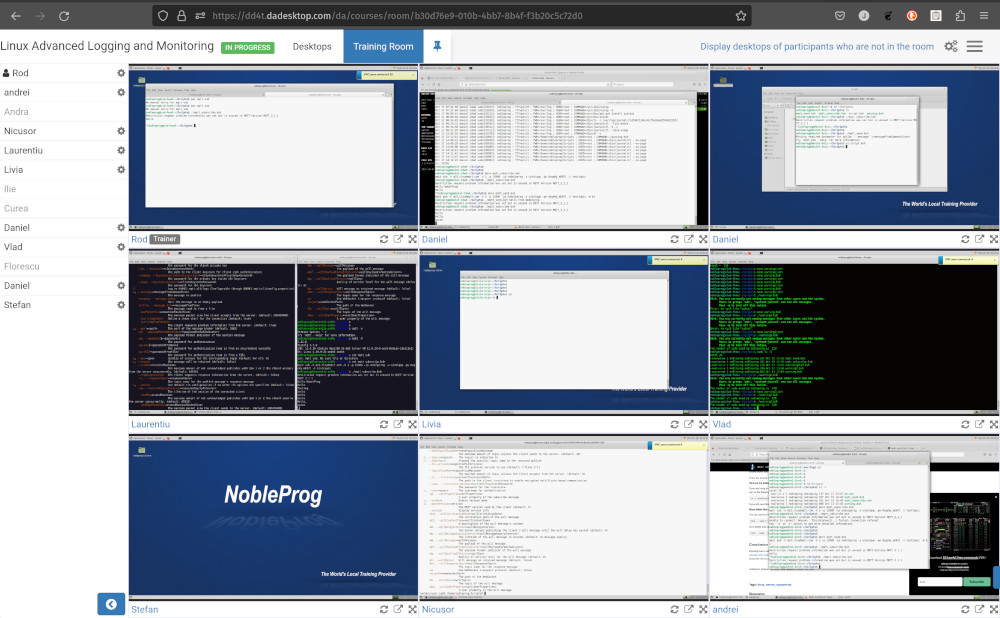
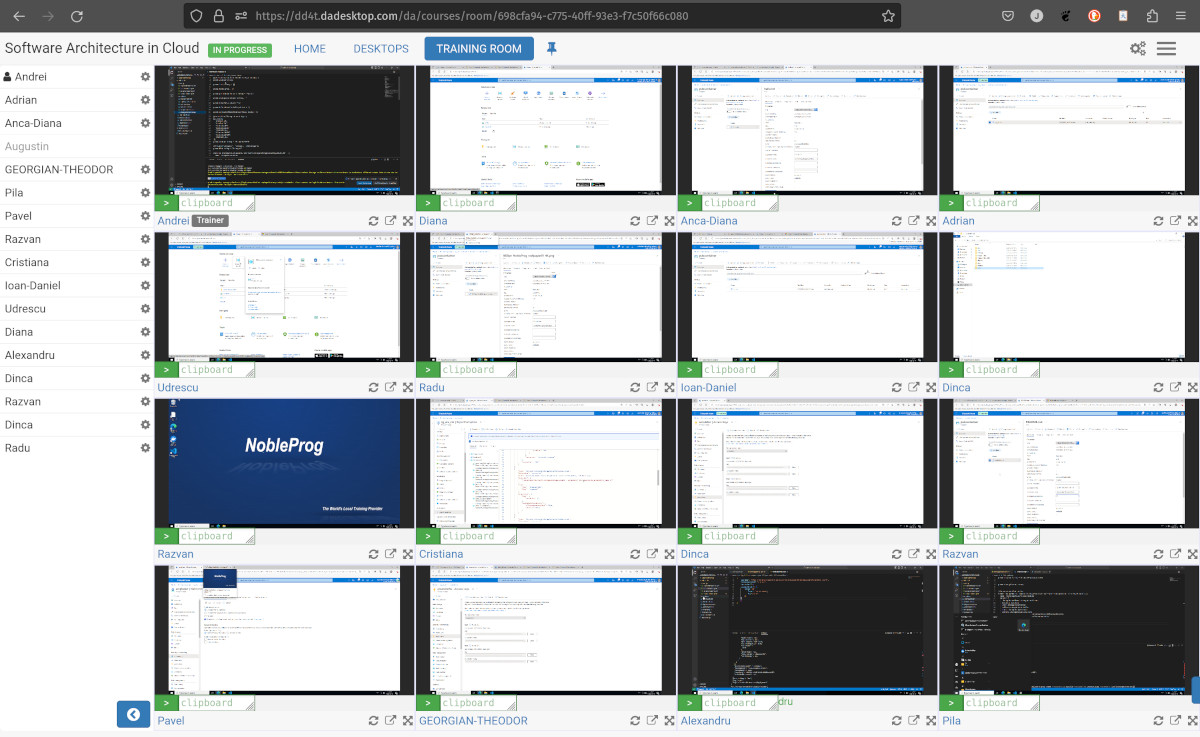
Trainers also have the unique ability to see every participant's machine at the same time and interact with any of them—for example, to give a hand to someone who needs help or is falling behind. This unmatched overview of all student desktops greatly helps recreate the feel of a traditional classroom.
Training Room View (Trainer's Perspective)
Training Room view displaying 16 participants (trainer only)
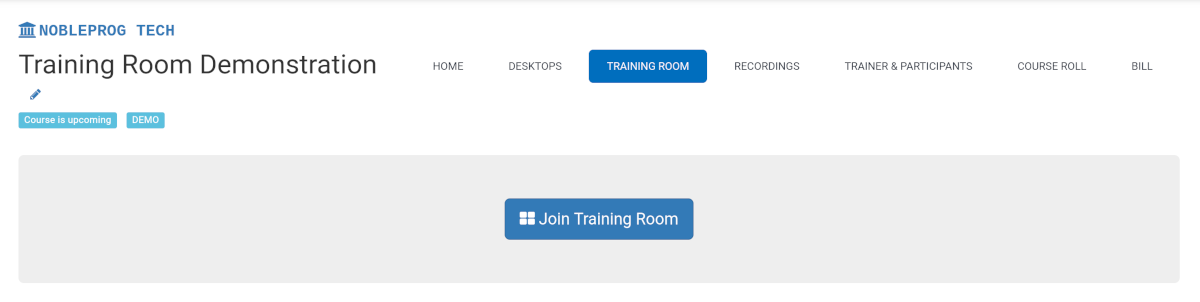
How to Join a Training Room
Maximising the Window
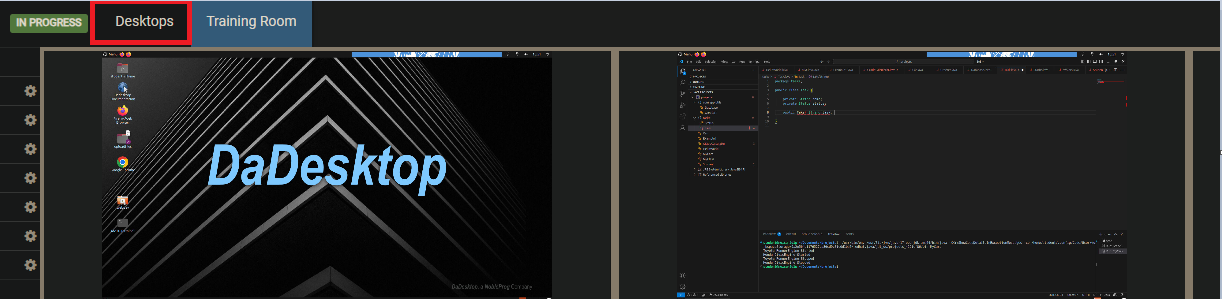
Exiting the Training Room View
Exiting the Training Room view isn't entirely obvious, but it's easy: just click the `Desktop` tab once more and you'll be taken back to the Training page.