Continuing Desktop Access After Your Course Ends
One handy feature of DaDesktop is that attendees can easily keep practicing on their course machine after the training wraps up. Before the course ends, participants are emailed to ask if they’d like continued access to their desktop once things finish.
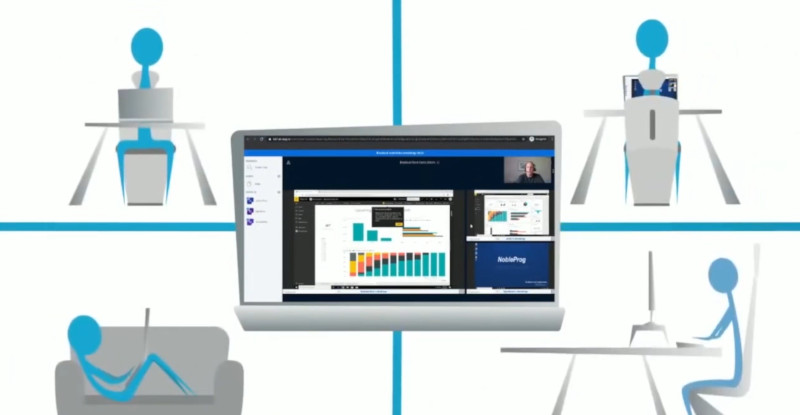
Typically, course desktops are deleted a short while after the course concludes. If you’d like to keep yours for lab practice, simply clone it into a ‘Standalone Desktop’ for later use.
Go to your Course, find your Desktop machine, and click the 'Use desktop after course' button next to it.
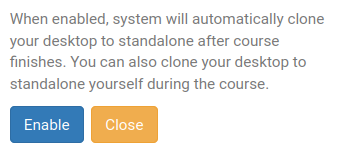
Next, DaDesktop walks you through a simple process and lets you ‘Enable’ this operation.
Once enabled, you’ll see this appear next to your course machine:

After the course, access your Standalone machine by clicking the Standalones menu at the top of your screen.
Machines inactive for a month are automatically removed, but you’ll get a warning email ahead of time so you have plenty of notice if you want to keep using any Standalone machines.
For details on managing the lifespan of your Standalone machine, please see this page.