Trainer Recordings
DaDesktop offers several methods for capturing desktop activity and course sessions. These include recordings for troubleshooting, training rooms, and trainer sessions.
Trainer recordings specifically capture the screen and audio from the trainer's own DaDesktop workstation. To start a trainer recording, follow these steps.
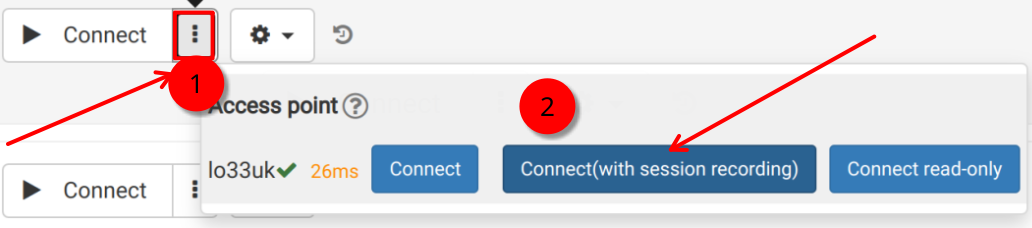
- Click on the three vertical dots icon to open a compact menu, then select 'Connect (with session recording)' from that dropdown.
-
The system will begin capturing audio and video from the trainer's machine. These recordings are not accessible until after closing the virtual classroom, at which point the recording is finalized. However, if you are a SuperAdmin user, you'll see an additional menu option that lets you watch recordings live as they happen.
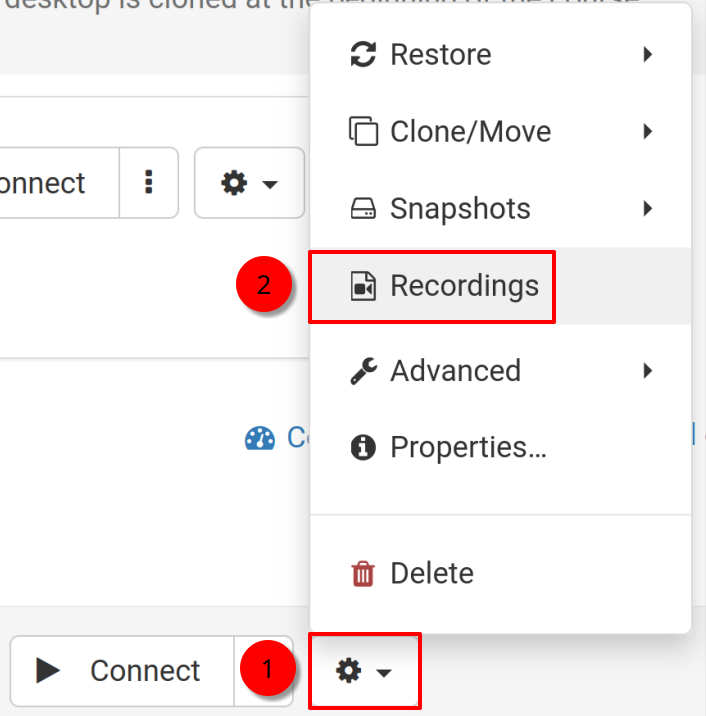
- To access and manage your recordings, click the gear icon and go to the Recordings menu.
Recordings
There are two ways to watch the trainer's own recordings.
- First, you can open the Recordings menu mentioned earlier. There, you can play back or delete recordings as needed. The icon with two crossed spanners indicates 'Troubleshooting Recordings' – these are generated automatically and not meant for presentations, but kept for diagnosing issues when necessary.
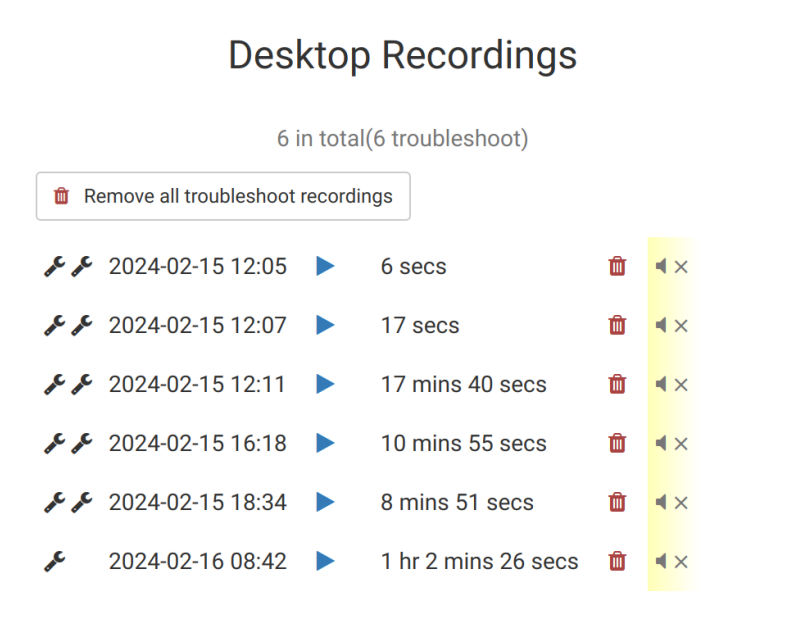
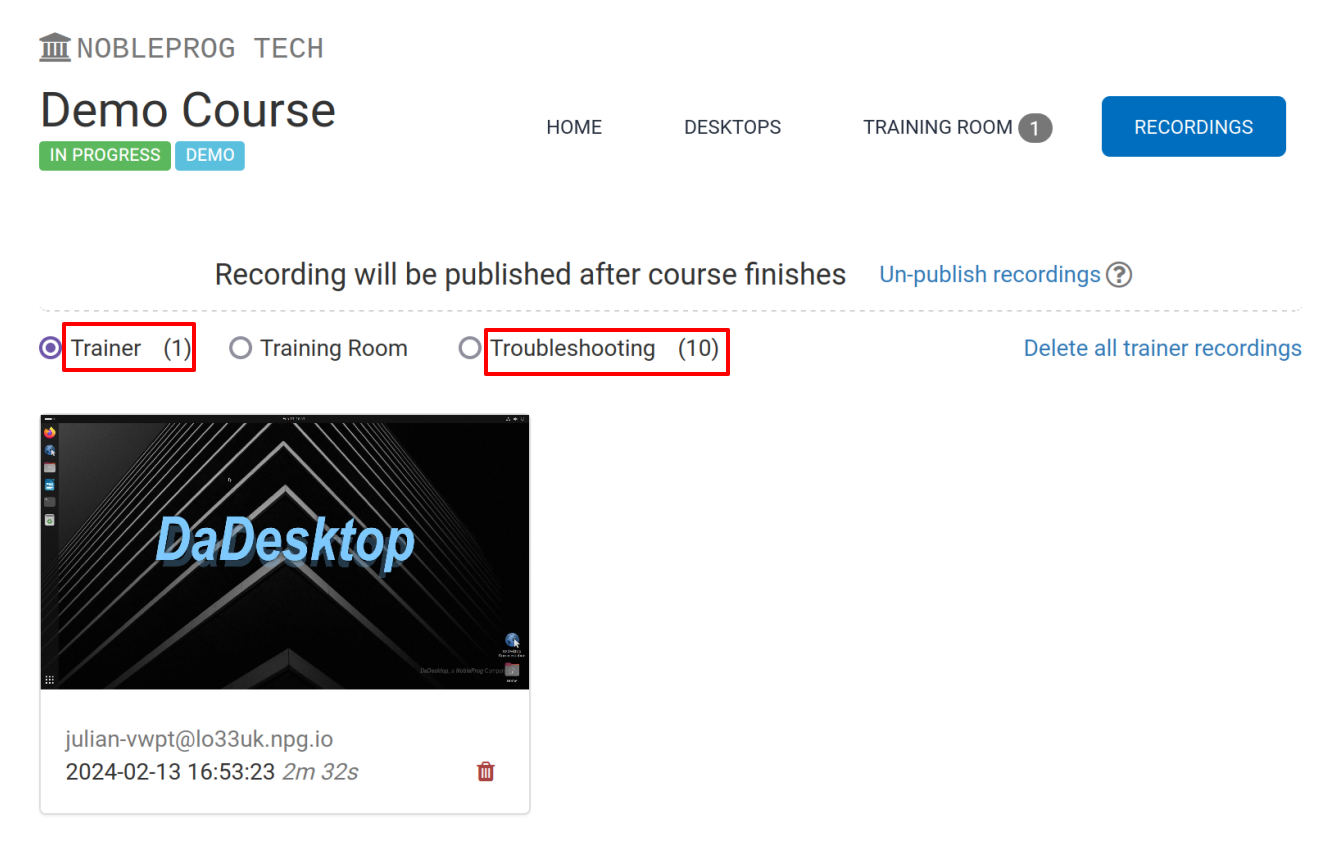
2. By heading to the 'Recordings' tab within a course, you'll see all trainer, training room, and troubleshooting recordings.