Selecting Multiple Course Dates
When putting together a course, you can schedule it across several sets of dates. This gives you the flexibility to adjust participant availability so everything fits neatly around your own calendar.
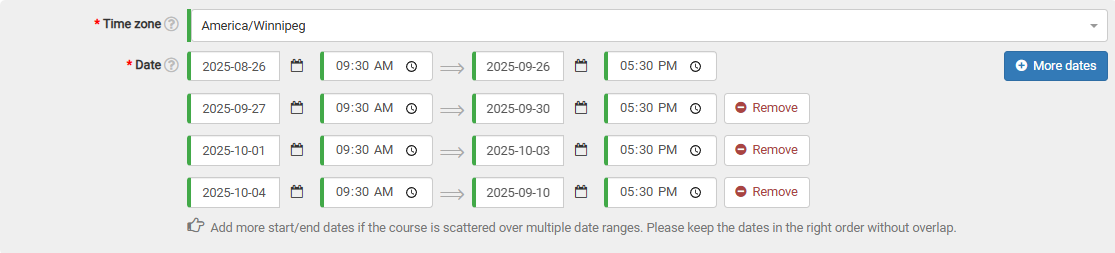
On the course form’s date area, tap the "More dates" button. A fresh date selection row will then appear right on the form.

You’re free to add as many date ranges as you like, provided none of them clash.
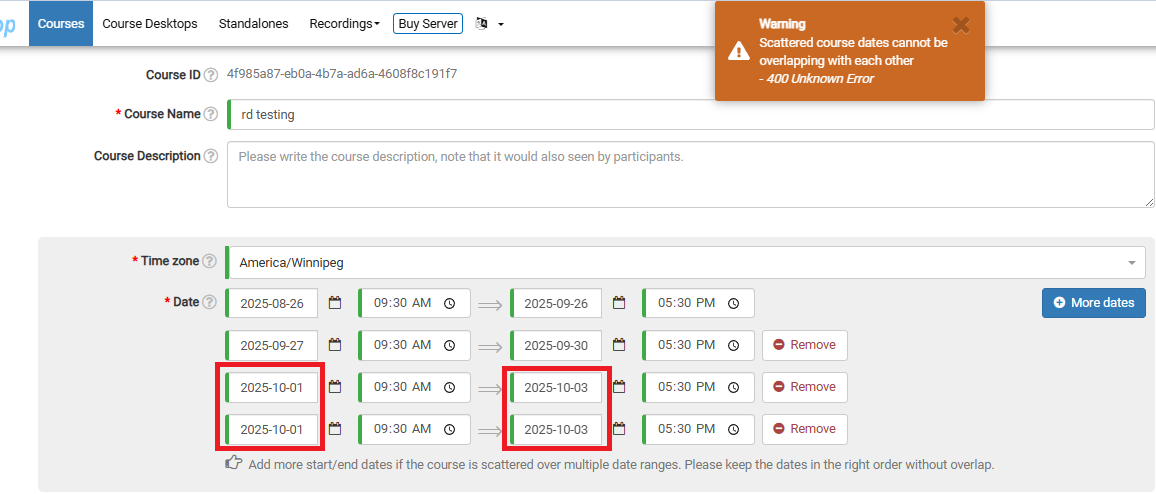
If they do overlap, a warning will pop up at the top of the page when you go to submit your course. For example, below I’ve accidentally selected the same date range twice.